How to study YouTube videos with notes and flashcards
A useful study session ends with something you can explain, draw or solve. Choose one small goal, watch a section, then use notes and practice to check what you understood.
Try the Micrograd notesBrowse ready-made study materials
1. Choose a video and one learning goal
Start with the prerequisites and overview on the video page. For a long lecture, choose one concept for this session instead of trying to finish everything.
Use With materials to find prepared videos. Notes, Quiz, Flashcards and PPT outline tags open the corresponding tool. Prepared packs are currently free during launch and contain English materials.
2. Watch with notes beside the video
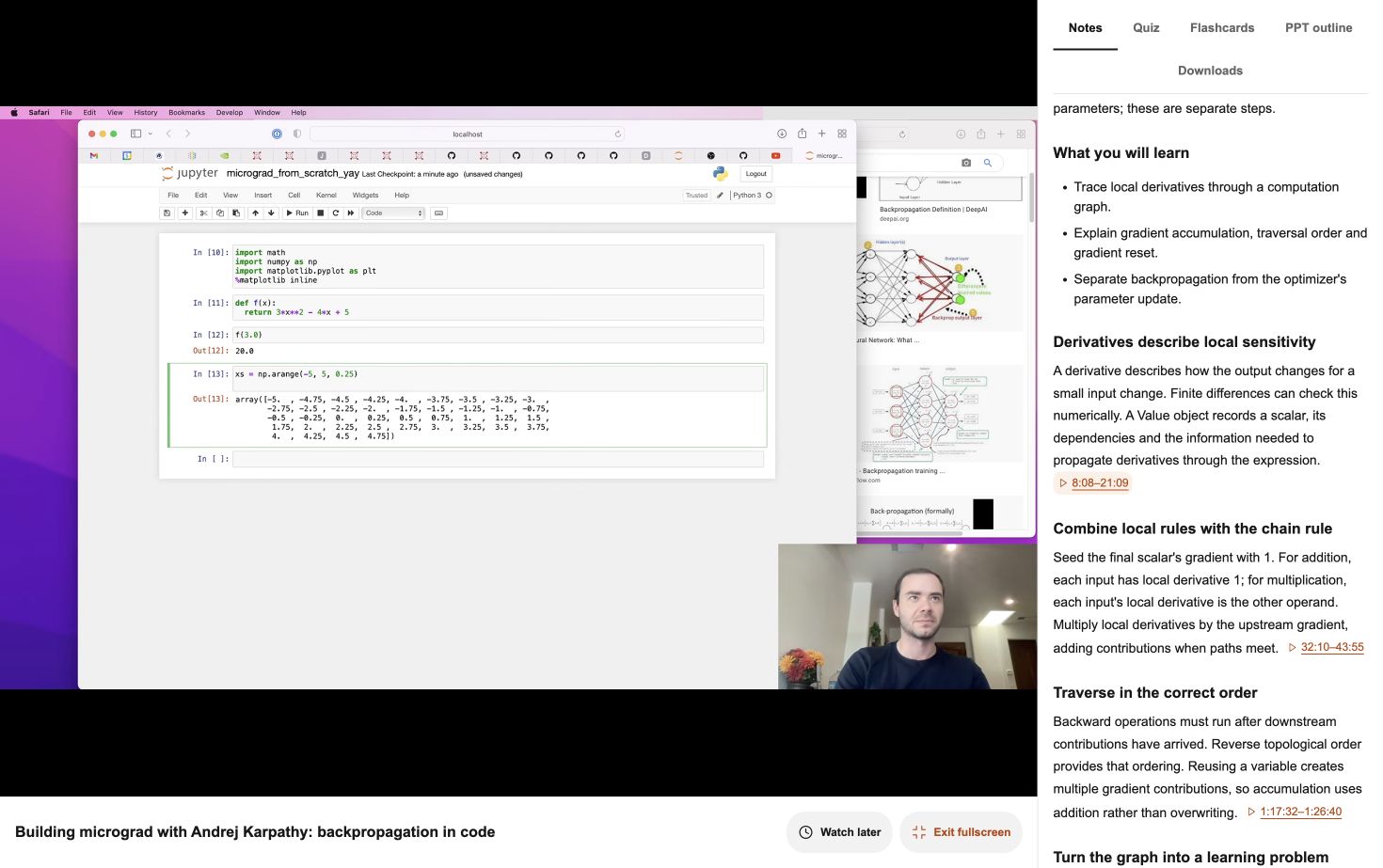
Open Notes, then choose Fullscreen study. Desktop view places the video on the left and the study tools on the right; on small screens the tools remain below the video. Choose Exit fullscreen or press Escape to return.
Read the section heading before playing. Pause at a natural break and write a short explanation in your own notebook. Compare it with the prepared notes and mark the part you still cannot explain.
3. Revisit an explanation with timestamps
Select a time range in Notes or a quiz explanation. The current player jumps to that part of the video, so you can compare the explanation with the same materials without opening another site.
For Micrograd, replay the derivatives section and trace a small computation graph by hand. For Vectors, draw the arrow and its components before checking the visual explanation.
4. Answer the quiz before checking explanations
Switch to Quiz and answer the questions from memory. Check your answers, read the explanations and revisit the linked video moments. Use Review missed to return to questions that need another attempt.
5. Review with flashcards or Anki
Open Flashcards, answer before revealing the back, then mark whether you remembered it. Edit a card when a shorter prompt or your own example would make it easier to understand.
For Anki, open Downloads and save the flashcard CSV. Import it as comma-separated fields: Front, Back and Tags. Allow HTML to preserve the source links and skip the header row if it is not detected. Preview the fields before confirming the import.
Return to the cards on a later day and again the following week. Keep a short list of ideas that still require the video explanation.
6. Use the PPT outline to explain what you learned
The PPT outline organises the topic into slide headings and talking points. Choose a section and explain it aloud in your own words; use the structure when preparing your own presentation.
Downloads contains the available files and complete pack. Keep the notes, quiz or cards you want to review offline, then return to the video page when you need the original explanation.
When a video has no study materials yet
You can still watch the video, read its overview and browse the HN comments. Request study materials records your interest and helps choose what to prepare next.